![Incrmntal Logo.png]](https://knowledgebase.incrmntal.com/hs-fs/hubfs/Incrmntal%20Logo.png?height=40&name=Incrmntal%20Logo.png)
Campaign labeling allows you to group campaigns across multiple channels using a consistent label, as long as the campaign name contains a unique and identifiable component. This makes it possible to analyze campaigns by product, objective, or strategy, rather than by individual platform or network structure.
How campaign labeling can be set up
Campaign labeling can be configured in two ways:
Option 1: Manual setup in the Analyst Dashboard
Labels can be created and managed manually from the Analyst Dashboard.
This option is suitable if you want:
- Do the labeling yourself and have a direct control over label creation
-
Faster iteration without external coordination
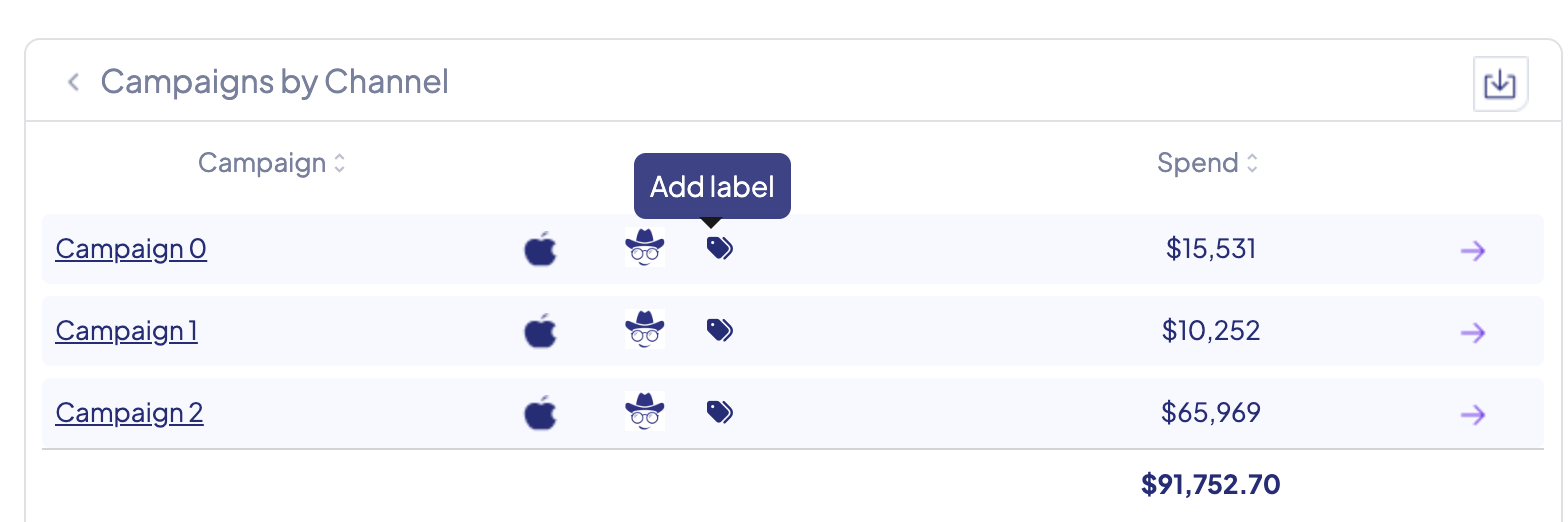
To add Labels manually - go to Analyst Dashboard. Go to a specific channel. Next to each campaign you will see a Label "label icon", by clicking on it you can assign label to each of the campaigns.
Option 2: Setup by the INCRMNTAL team
Campaign labeling can also be configured by the INCRMNTAL team, provided that you share:
-
The naming convention used in campaign names (should be unique for a label)
-
The desired label name(s)
Once the convention is defined, INCRMNTAL will ensure the labels are applied consistently.
Avoid identifiers that could apply to multiple unrelated campaigns
When is campaign labeling most useful?
Campaign labeling is designed to support cross-channel analysis of campaigns that share the same intent but run on different platforms.
Typical use cases include:
-
Comparing campaigns advertising different products across multiple channels
-
Grouping campaigns by type, such as:
-
Awareness
-
Prospecting
-
Retargeting
-
Re-engagement
-
-
Analyzing performance by strategy or objective, rather than by network-specific setup
By applying a shared label, INCRMNTAL allows these campaigns to be evaluated together, even if they live on different Networks/Platforms.
Analyzing performance based on Labels
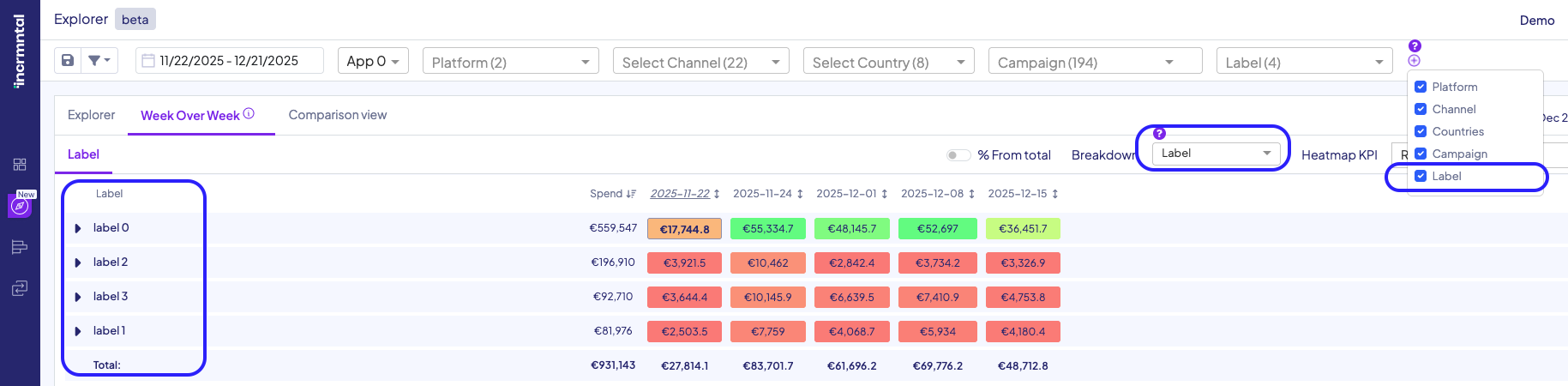
Once you have added labels to your campaigns you can analyze the performance of your labels in EXPLORER similar to how you analyze your Channel/Campaign performance.
Go to WoW Explorer tab. You can add s filter by Label, change Breakdown and compare performances per different labels
In the Explorer Pivot tab go to the Columns section on the right side of the screen and enable Label column. Drag label column up for it to become a dimension. 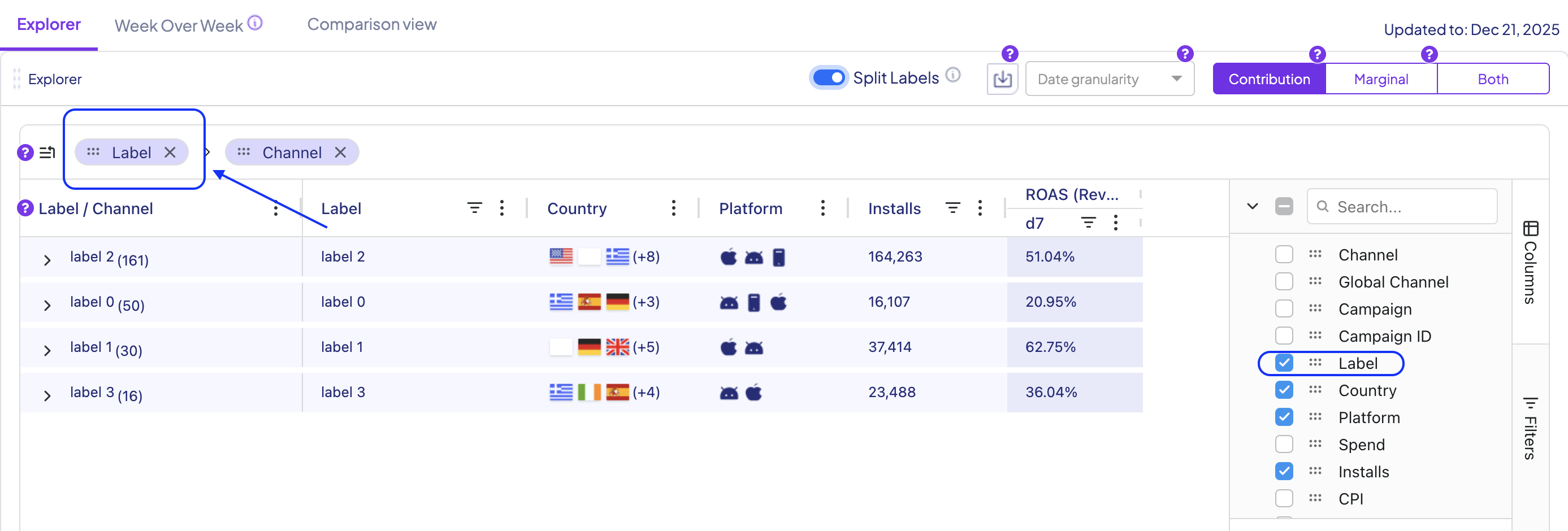
For any question please contact support@incrmntal.com , or open a support Ticket here