![Incrmntal Logo.png]](https://knowledgebase.incrmntal.com/hs-fs/hubfs/Incrmntal%20Logo.png?height=40&name=Incrmntal%20Logo.png)
The INCRMNTAL Analyst Dashboard is primarily used to review, validate, and understand the data you send to INCRMNTAL, as well as to track and inspect detected marketing activities within that data.What the Analyst Dashboard Shows
The Analyst Dashboard presents your integrated data, including:
-
Marketing spend by channel and campaign
-
Integrated KPIs such as installs, registrations, revenue, FTDs, or other custom business metrics
-
Detected changes in marketing activity (budget, bids, campaign status, etc.)
Only data that has been successfully integrated into the platform is displayed here.
If this is your first time logging into the dashboard after it's been set, we'd recommend validating the data to make sure it matches the spends and installs you expect to see.
Dashboard Filters
We equipped our dashboard with super fast filters, allowing you to zoom into your marketing activities by date/range, application (or destination in case of a website), marketing channels, and countries.

The Suggested Activities filter will bring up the most significant changes in spend you've done, manually added activities, new markets being opened, and bookmarked changes.
You can also filter your dashboard based on Advanced Filters, by clicking on the funnel on the right side ( ). More information about these filters can be found here.
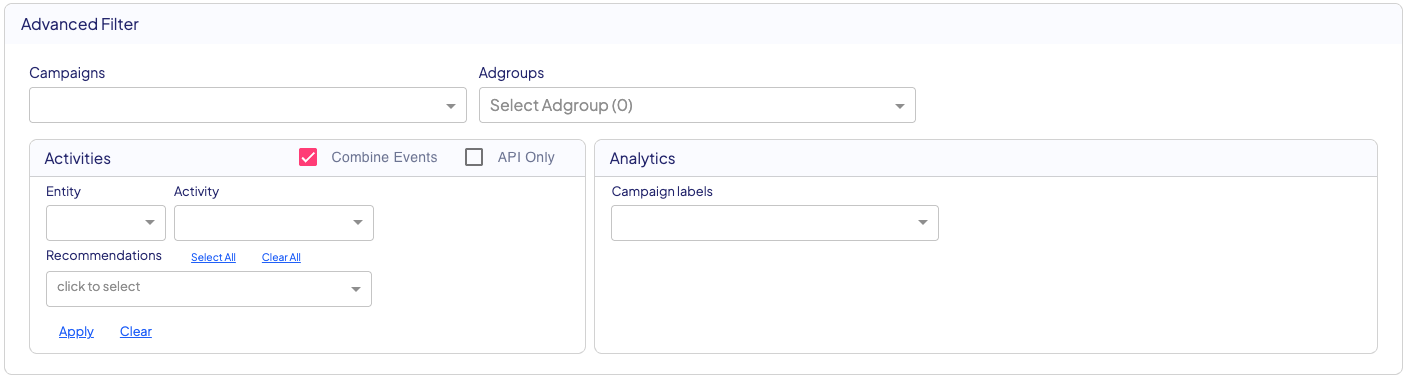
The channels drop down shows only the active channels and campaigns during the chosen date range.
Your KPIs, as provided in the existing integration
The presented data on the main dashboard includes purely the received data in the integration we set. This isn't yet the incremental part!
You can review the conversions, revenues, and engagement metrics you're providing to us on the graph, as well as hover over a day to see its values. You can also enable different metrics (such as revenue cohorts) to review as well.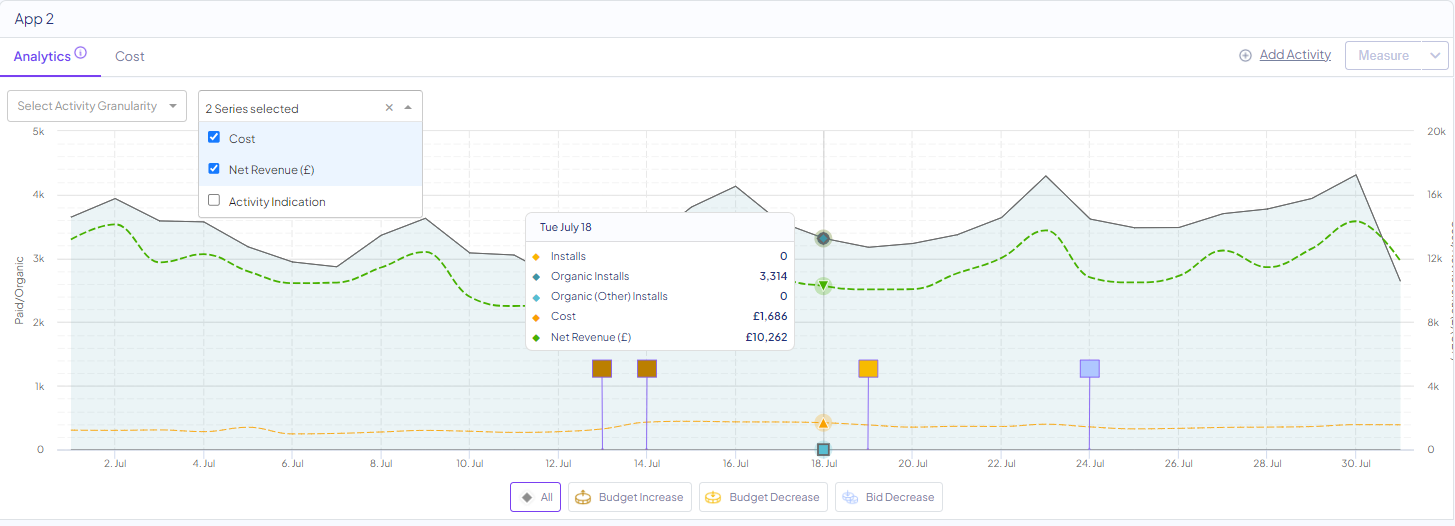
Changes in Spend as the Core Unit of Analysis (aka Activities)
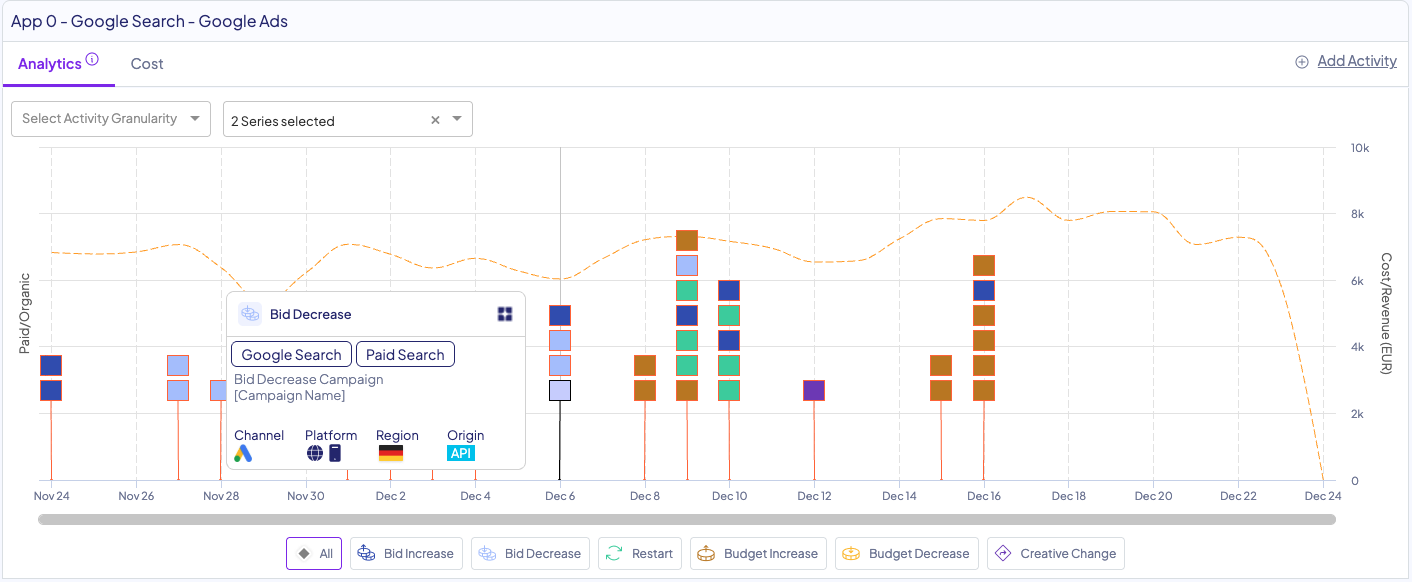
In the Analytics tab, each visual element (square) represents a single detected change in spend or activity, such as:
-
Budget increases or decreases
-
Bid changes
-
Campaigns or channels being opened or stopped
These changes are the foundation of INCRMNTAL’s measurement logic. Rather than analyzing performance averages, the platform evaluates real decisions you made and treats them as measurable events.
Each square is clickable and corresponds to one discrete marketing action
Measuring Incrementality of a Single Change
Explore activities by channel, drill down to a lower granularity, and measure the incremental impact of a channel / campaign / ad group change directly from the activity tracker, by selecting a significant change in an app+channel+country, click the activity flag and select "Measure". You can learn how to measure changes on channels, campaigns, or ad groups in the attached links.
The result will be available in the Results Tab.
Sorted spend per country and channel. Total KPIs view
It is possible to filter and sort spends by clicking the country or the channel tables, below the dashboard graphs (see toggle on the top right).
The country table is available in both a list and map view, allowing you to identify your top spending countries. You can click the desired country or channel to filter the board accordingly.
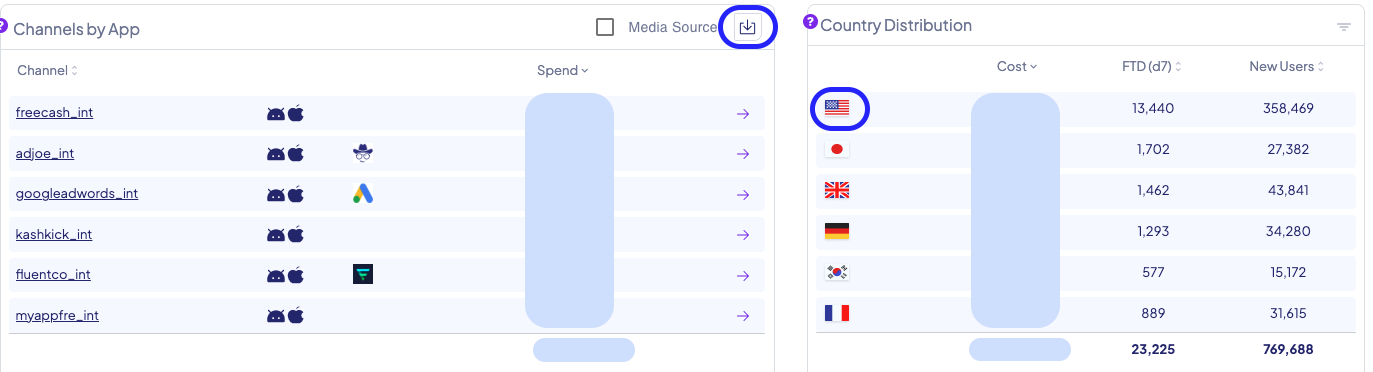
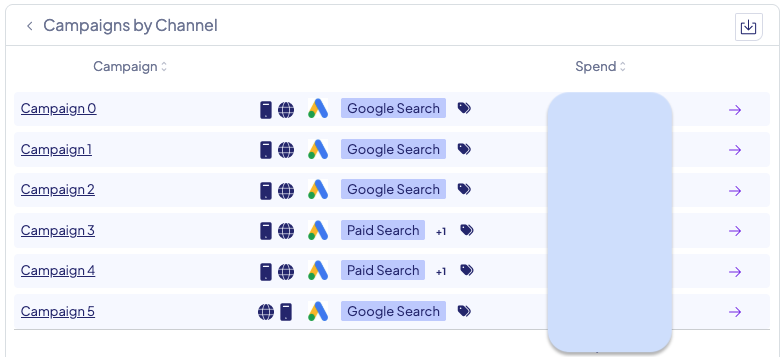
The channel list will show you the spends per channel. Clicking the channel will filter the board to present its data, and show the campaigns within the chosen channel.
On the Right side, you can select more KPIs from the drop-down menu. The view will show you total KPIs for the selected timeframe